
Jev macOS Loop
Use Jev to choose actions from local OCR, accessibility and visual observations for native macOS automation.
Added to Jevfast
Use Jev to choose actions from local OCR, accessibility and visual observations for native macOS automation.
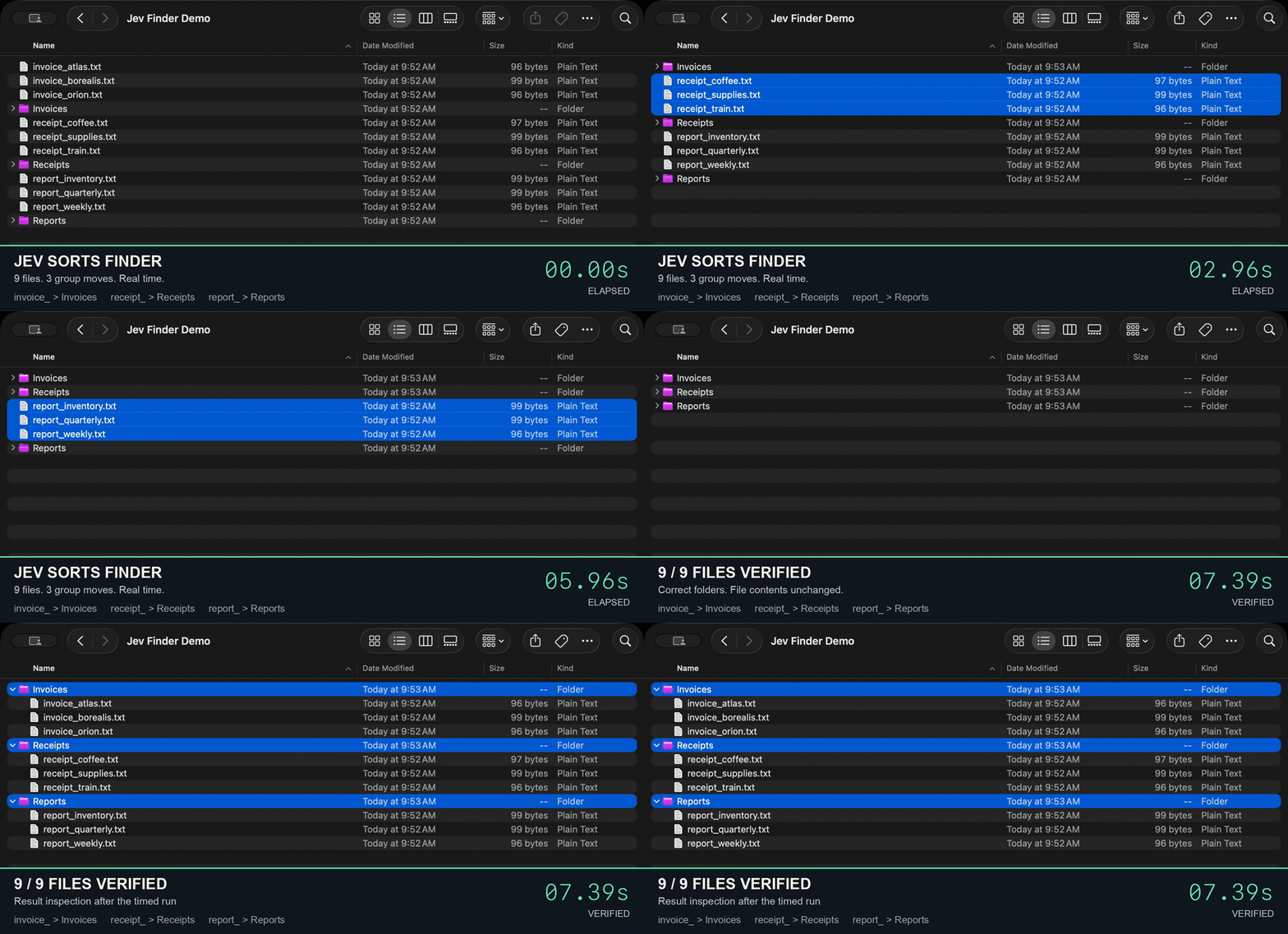
Local OCR, accessibility and visual parsing turn the macOS screen into text and enabled controls. Jev chooses one offered action; native code validates and executes it before observing again. A Finder batch path classifies visible files into destination folders in one request.
Choose a visible action advancing the goal; DONE requires visible proof of completion. WAIT observes loading; BLOCKED reports unavailable actions.
Representative source test screen: goal Open settings, visible text Settings, and enabled AXButton e0 labeled Settings. Disabled e1 is omitted. Actual control IDs are rebuilt for each observed screen; recentActions holds up to eight actions.
Read visible controls using macOS accessibility, Vision OCR and local visual parsing.
Send bounded text state and finite action choices to Jev.
Reject unknown choices or invalid probabilities; native code executes the selected action and observes again.
Demo checks independently confirm the requested final state. Finder batching checks file destinations and content hashes.
Screen pixels stay local while Jev receives a finite action set. The Finder batch path groups file decisions into fewer native drags, and a separate verifier checks the final files and hashes.